 Ayos
Ayos
How to Find Large Videos on iPhone
Videos take far more space than photos, so a handful of long ones can fill more of your iPhone than thousands of pictures. Finding them is the quickest way to get space back.
Check how much space photos and videos use
Open Settings, tap General, then tap iPhone Storage. You'll see what's using your storage, app by app, and sometimes recommendations for saving space. (Apple Support)
Browse your videos in the Photos app
- Open the Photos app.
- Tap Collections, scroll down, then tap Media Types.
- Tap Videos.
(Apple Support) Each video shows its length. Longer videos are usually the bigger ones, so they're a good place to start.
Delete the ones you don't need
Tap Select, tap the videos you no longer want, then tap the trash button. Deleted videos stay in Recently Deleted for 30 days, so the space comes back after that, or right away if you delete them from Recently Deleted yourself. (Apple Support)
Or keep them and save space anyway
With iCloud Photos and Optimize iPhone Storage turned on, your full-size originals are stored in iCloud and your iPhone keeps space-saving copies. (Apple Support) That needs enough iCloud storage for your library.
See the biggest videos first with Ayos
Judging size by length is guesswork, because how big a video is depends on its quality as well as how long it runs. Ayos has a Large videos pile with the videos over 100 MB, biggest first, each with its size, so you can see at a glance where the space has gone. Videos you've marked as favorites or filed in your own albums aren't included.
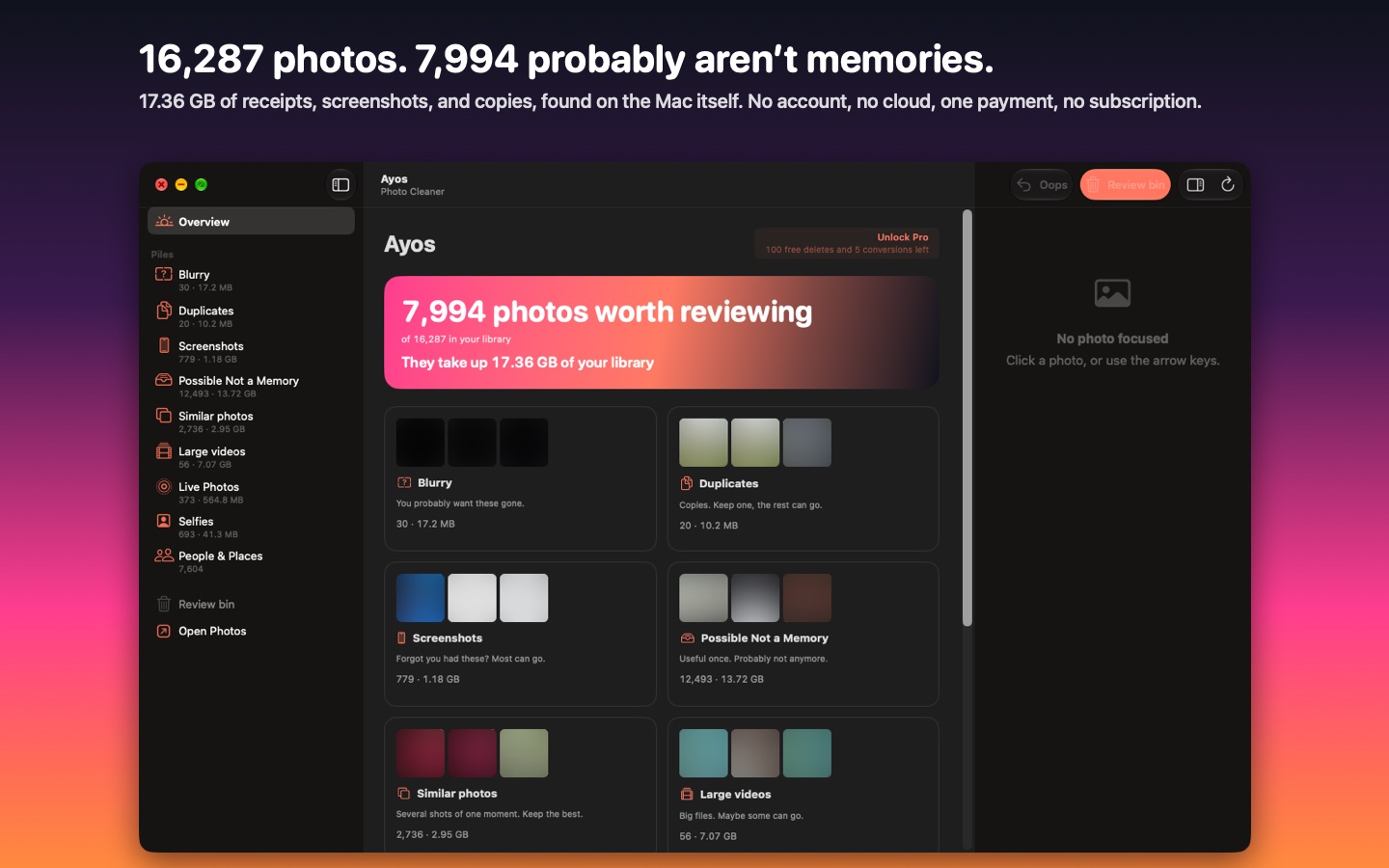
Pick what can go and it goes to the Review bin first, where it waits 7 days so you can change your mind. Then Photos asks once more and keeps it 30 days in Recently Deleted. Ayos looks at your library on your device and uploads nothing. The Large videos pile is on iPhone, Mac and Android.